Guide · AI tools
Beginner’s guide to OpenClaw

Before I give my rough explanation of what OpenClaw is, I think it’s first important to understand why use OpenClaw.
The first and obvious answer is that it can save you time by automating repetitive tasks. Second, it can save you effort by decreasing manual work. Third, it can save you money by reducing labor and tool costs.
So what is OpenClaw? You can really just think of it as a free or inexpensive AI assistant that can actually take actions for you through communication in chat apps (Telegram in our case). Its actions can range from checking you into flights to managing your calendar, but in our case I highlight a beginner use case of searching through emails.
Who is this guide for: anyone who’s heard of OpenClaw and has been wondering what it is and what it can do. Consider this your "Hello, world!" to one of the most powerful and worthwhile tools out there.
You can make OpenClaw free using a local model through Ollama, however a simpler, and still free method, is to create a Gemini API key. This API key, although not unlimited, is enough to get the job done for this intro!
Okay now that the overview is done, here is the step by step of setting it up. Note that I have a mac, so if you’re using windows or linux this might not be the guide for you!
Step 0) Ensuring you have Node.js version 22 or higher
Just so that you don’t think I’m making you install a virus, Node.js is essentially just a tool that lets your computer run JavaScript programs. Since OpenClaw is built with JavaScript, you need Node.js for it to work.
To check:
- Press Command + Space, type Terminal, then press Enter. This will open up your mac terminal.
- Type: node --version
- Press Enter
- If you see a version like v22.1.0, or any version starting with 22 or higher, you are all set
- If you see command not found, or the version is lower than 22, you need to install it
Installing Node.js (skip if “node --version” returned 22 or higher)
- Go to this link
- Download the version labeled LTS (should be circled in blue at the bottom left)
- Run the installer and follow the steps!
- Once it finishes, type node --version again to confirm it worked
Step 1) Creating a Telegram account
We will need a Telegram account in order to communicate with OpenClaw!
On your phone:
- Download the Telegram app
- Add your phone number when prompted to in the set up
- Add first name and last name
On your mac:
- Go to this link
- Follow the set up instructions (Scanning QR on phone from Telegram → Settings → devices)
For now that’s all we need to do, we will circle back to this once OpenClaw is installed and we are setting up.
Step 2) Creating your API key for OpenClaw to use
First, what is an API key? The most straightforward way to think about it is that it’s just a password, that only you should ever know, and it allows OpenClaw to use Gemini’s AI.
To create one:
- Click this link to get brought to Google’s page to create a Gemini API key
- Click on the white text in a blue circle that says “Create or view a Gemini API key”
- Will be brought to table with the leftmost column titled “Key”
- In that column, click on the blue text which says something like “...xxxx” where x’s are characters or numbers
- There, under API key, you will find your full key!
- We don’t need it right now, but keep this tab open for now
Step 3) Installing OpenClaw!!!!
Here comes the fun, but a little more complicated part. This (step 3 → step 5) should take ~20 minutes ( 10 minutes if you’re already tech savvy ).
To install:
- Open up your terminal again (Command + Space, type Terminal, then press Enter)
- Type: curl -fsSL https://openclaw.ai/install.sh | bash
- If this doesn’t work because of admin issues:
- Type: sudo -v
- Hit enter
- Enter your password as prompted (the characters won’t appear but trust me it is being entered!)
- Then type: curl -fsSL https://openclaw.ai/install.sh | bash
Now you will see a bunch of installations going on! What we just did is tell our computer to go to “https://openclaw.ai/install.sh” and run that installation script on our mac.
Once all the installations are finished, you should see a screen like so in your terminal:
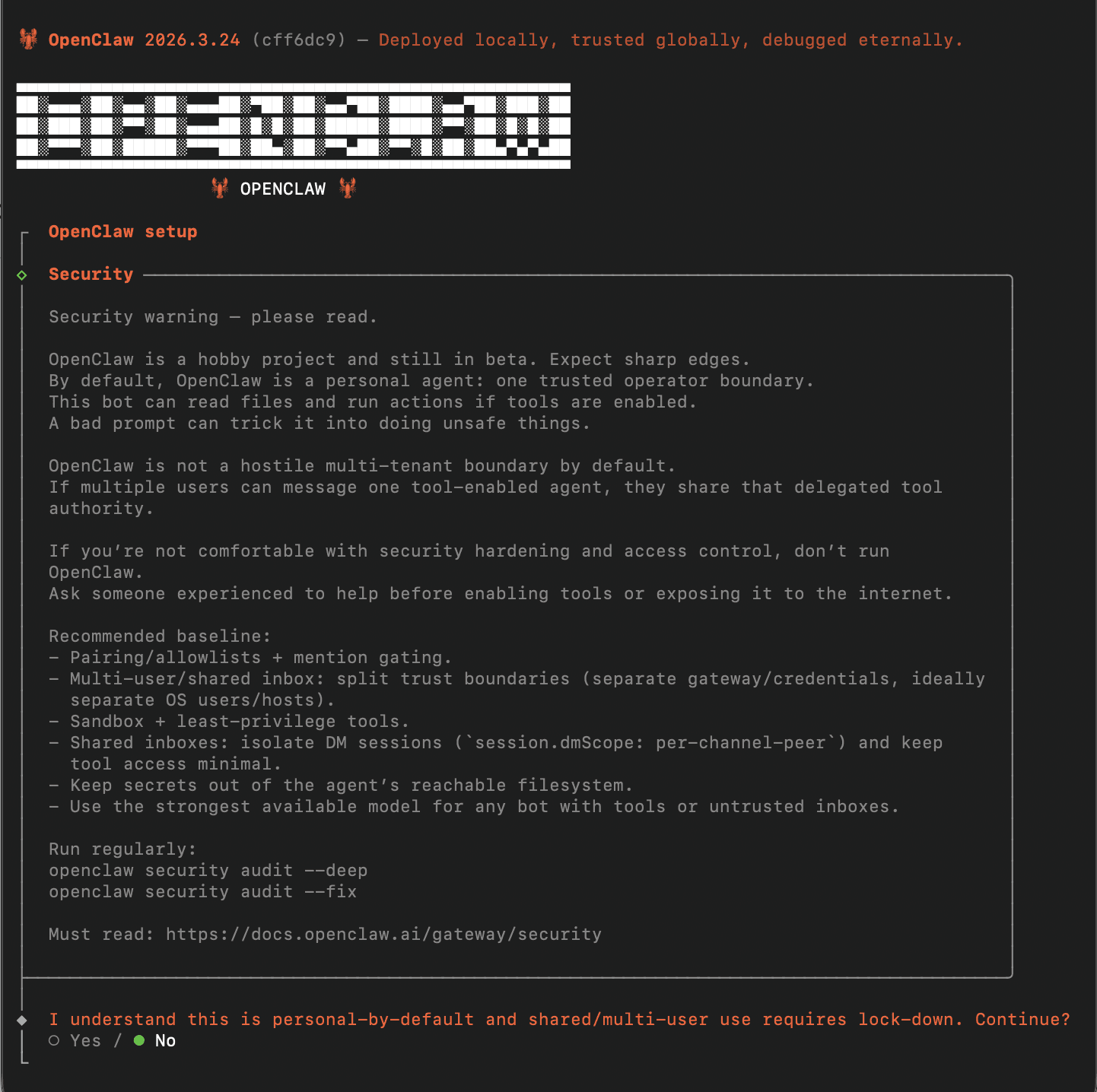
Step 4) Setting up OpenClaw
Now that we have it installed, we need to set it up!
Set up steps:
- From that screen we were just on after installing, use your arrow keys to go over to “Yes”, then hit enter
- Setup mode: Select quickstart. Manual gets more gritty, and for now we just want the lowest friction path to get started!
- Model/auth provider: Select Google
- Google auth method: Select Google gemini API key
- Enter the API key from step 2 and hit enter
- Default model: Select gemini-2.5-flash-lite. This is because we are using the free API key, so we can’t select their most recent and “best” model. Instead we use one of the free ones which is still more than enough!
- Select channel: Telegram (Bot API)
- Open Telegram on your mac, then in the search bar, enter: BotFather
- Run /newbot
- Enter a name (I chose Mr. Claw)
- Enter a username (I chose frenchClaw1392_bot, as it must be a unique name and adding french was just the first thing that came to mind)
- Then you will be done, and store the token, which starts with “123456:ABC...”
- Entering Telegram bot token: select Enter Telegram bot token
- Paste in your token from Telegram and hit enter
- Search provider: Gemini (Google Search)
- API key : Enter the same API key you used for the model
- Configure skills now: Yes
- Install missing skill dependencies: select (by hitting space) himalaya and summarize, then hit enter
- Himalaya will let OpenClaw read and search your emails. Summarize will let OpenClaw condense long emails and other text into short summaries. Other ones are useful (like gog to allow OpenClaw to interact with your Google calendar and other Google products), but for now let’s just install these two. In the future, it will be very easy to install the other dependencies!
- Set GOOGLE_PLACES_API_KEY for goplaces : No
- Set NOTION_API_KEY for notion : No
- Set OPENAI_API_KEY for openai-whisper-api : No
- Set ELEVENLABS_API_KEY for sag : No
- Hooks: skip for now
And now your claw should be hatched! It will ask you a couple questions in the terminal about its personality, which you can answer! Here was my answer:
- 1) Mr. Claw 2) AI Assistant 3) Calm, professional, and friendly 4) 🦞
Step 5) Getting it started on its first task
OpenClaw can do many amazing things, but the simplest thing, let’s have it find an email for us! Before we talk to OpenClaw about this, we have to do a couple things to set it up.
In your gmail (on the web):
- Click the settings wheel
- Click “See all the settings”
- Go to the “Forwarding and POP/IMAP” tab on the top
- Make sure "Enable IMAP" is selected
Then, go to the following link:
- Enter a name for the password, in my case I used: Mr. Claw
- Copy the app password that gets created and store it for now. We will use it in our next prompt to Mr. Claw!
Tell OpenClaw, still in the terminal, the exact following:
- I want you to link you to my gmail account, john.doe@gmail.com. I have IMAP enabled, and my App password is: xxxx xxxx xxxx xxxx
And voila! Your Claw will now be linked to your gmail. You can have it: find specific emails, summarize conversations you’ve had with certain people, automatically delete certain emails (if you choose to later set that up), and much more! Here are some examples of what you can ask:
- Check my unread emails and summarize anything important
- Look through my inbox for any internship or job-related emails from the last two weeks
- Find any emails with attachments from the last week
Note that you can keep talking to it in the terminal, or you can switch to Telegram! To communicate in Telegram, simply message your bot on Telegram (which you named in Step 4) "/start". Then, it will send you the exact command, which you just enter into OpenClaw. Once you have linked Telegram and OpenClaw, you can communicate solely through Telegram.
Also one last thing before the conclusion! Our Gemini API key has a very small usage rate. If you want to continue using OpenClaw, I recommend switching to a paid API key. The usage rates are very cheap! To do so, either restart this process with a paid API key, or follow the steps here.
Conclusion
Having it interact with emails is one of the simpler things you can do, but it’s a nice and easy starting point for other tasks! Some of those could be automating scheduled tasks or browsing the web and interacting with websites.
Agentic AI will likely change the way people work, communicate, and solve problems. I have already seen that shift in my own research lab, where I sometimes literally speak to OpenClaw and have it help me program. I do not think I am alone in feeling that life is becoming increasingly fast-moving and uncertain, but that is exactly why it is so important to invest in yourself and build skills that make you more adaptable and purposeful.